
Ear Assist user manual
For Ear Assist 2.12 on iPhone. Last updated 13 November 2026. This page prints cleanly if you want a paper copy.
This manual answers the questions people ask us most, in plain words. Use the contents list to jump to a section.
Ear Assist is a sound amplifier. It is not a hearing aid or a medical device. Always start with the volume low and turn it up slowly.
What Ear Assist is
What is Ear Assist?
Ear Assist is a sound amplifier app for iPhone. It picks up sound through the microphone and plays it louder in your headphones.
People use it for the television, a conversation at a table, a talk or a lecture.
Is Ear Assist a hearing aid?
No. Ear Assist is a sound amplifier. It is not a hearing aid or a medical device, and it does not diagnose or treat any condition.
If you have concerns about your hearing, speak to a hearing professional.
What do I need to use Ear Assist?
An iPhone with iOS 15 or later, and a pair of headphones. Wired headphones, AirPods and other Bluetooth headphones all work.
Getting started
How do I start listening with Ear Assist?
Put your headphones in first. Then:
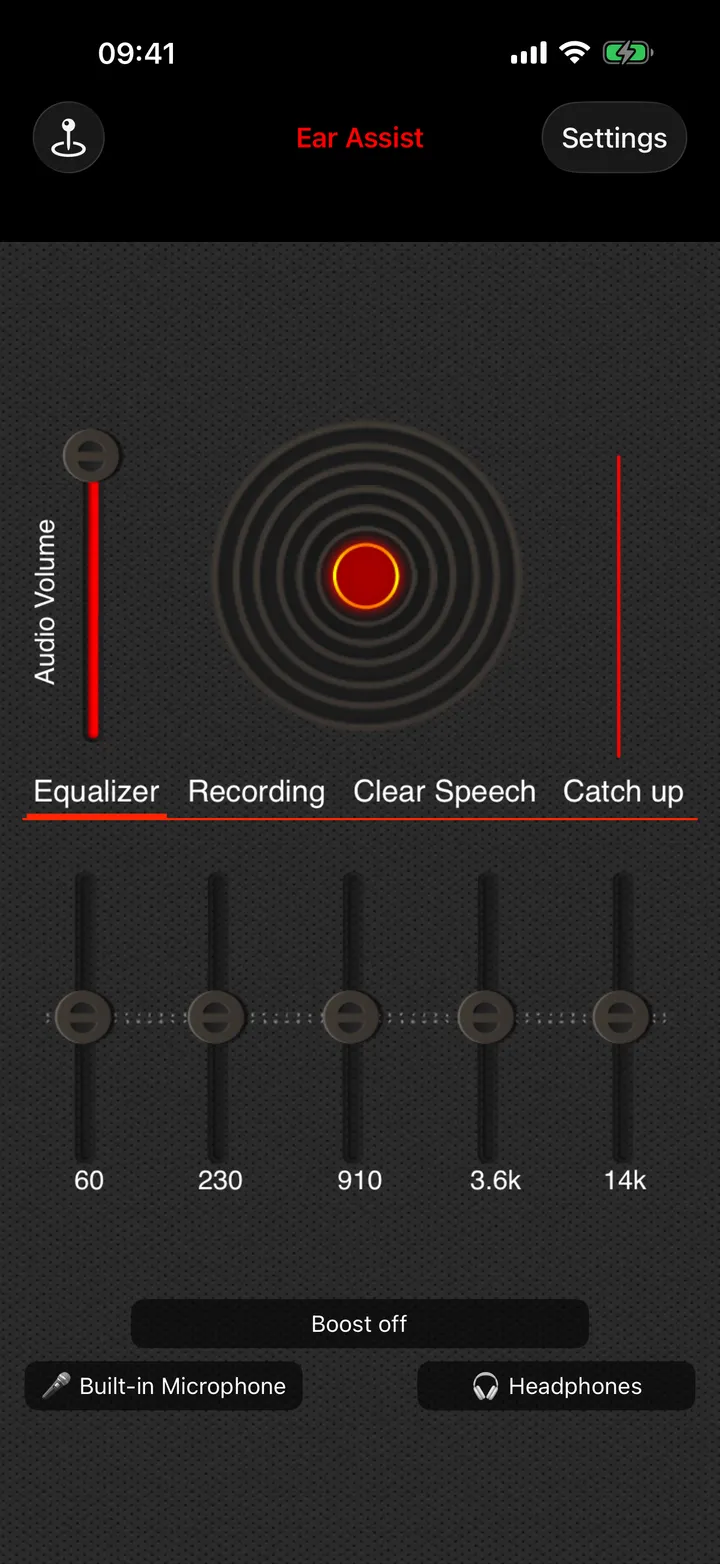
- Open Ear Assist.
- Slide Audio Volume down low.
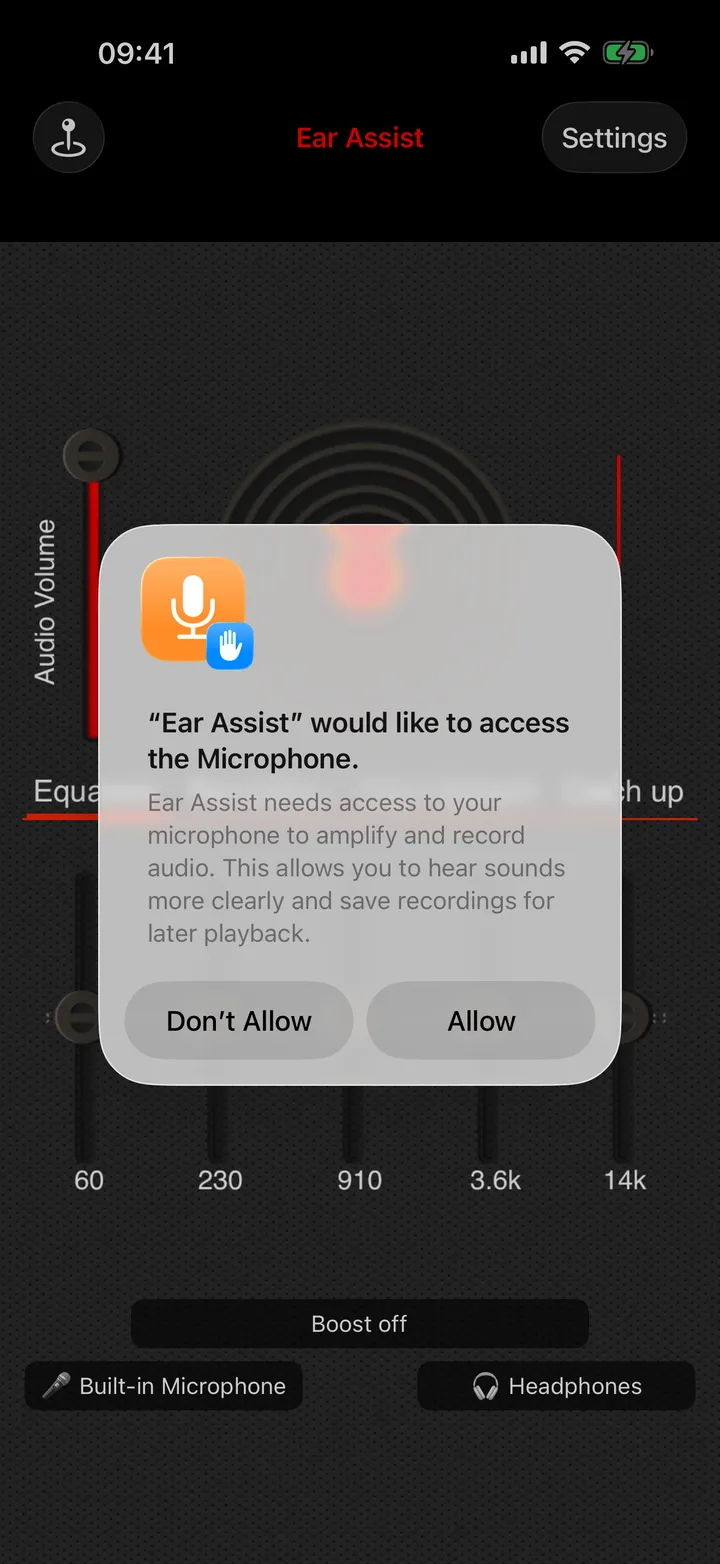
- Tap Play, the round red button in the middle of the screen. The first time, your iPhone asks whether Ear Assist may use the microphone. Tap Allow.
- Raise the volume slowly until it is comfortable.
Place the iPhone near the sound you want to hear, with nothing covering it.
How do I stop listening?
Tap the Play button again. The sound stops, and Ear Assist stops using the microphone.
Why does Ear Assist ask to use the microphone?
The microphone is where the sound comes from. Without it there is nothing to make louder.
If you did not allow it, Ear Assist shows a message with a Settings button when you tap Play. Tap Settings and turn Microphone on for Ear Assist.
Which microphone does Ear Assist use?
Ear Assist starts with the microphone in your iPhone. That lets you put the phone near the sound and listen from where you sit.
The microphone button on the main screen shows which microphone is in use. Tap it to choose another one, such as the microphone on a headset.
Wired and Bluetooth headphones
Which headphones work with Ear Assist?
Wired headphones, AirPods and other Bluetooth headphones all work. Wired headphones have the least delay.
Why is there a delay with Bluetooth headphones?
On Bluetooth headphones you hear sound a moment after it happens. That is Bluetooth itself, not a fault in the app or in your headphones.
Ear Assist shows a short note about this the first time it plays through Bluetooth headphones. Tap Got it to close the note.
Should I use wired or Bluetooth headphones?
Use wired headphones when you can also hear the sound directly, such as a television in the same room or a person next to you. With Bluetooth, the short delay can sound like an echo.
Bluetooth headphones suit times when the delay does not matter to you, or when you want to leave the iPhone near the sound and sit further away.
How do I choose where the sound plays?
The output button on the main screen shows where the sound is playing, for example Headphones. Tap it to see the list and choose another output.
Using the iPhone's loudspeaker
Can I use Ear Assist without headphones?
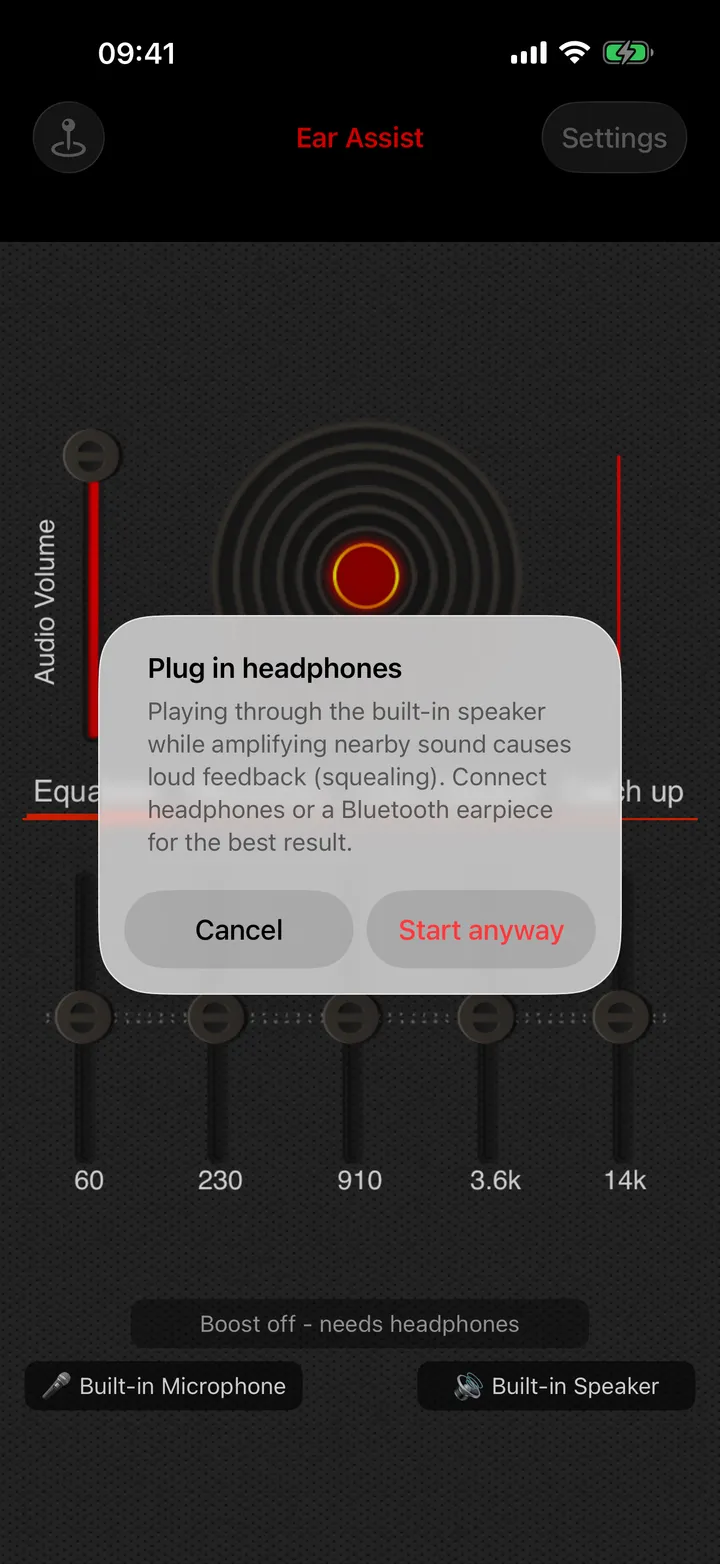
You can, but headphones are much better. Through the loudspeaker, the microphone hears the speaker, and the sound goes round in a loop. That makes a loud squeal called feedback.
If you tap Play with no headphones connected, Ear Assist shows a warning called "Plug in headphones". Tap Cancel to stop and connect headphones, or Start anyway to carry on.
If you tap Start anyway, Ear Assist turns the volume down before it starts. Boost stays off on the loudspeaker.
Ear Assist never plays amplified sound through the loudspeaker unless you have chosen that yourself.
What happens if my headphones disconnect while I am listening?
Ear Assist stops listening and shows Play again. It does not carry on through the loudspeaker. The same happens if the sound is moved to the iPhone in another way, for example by choosing iPhone in Control Centre.
If you were recording, the recording is paused and everything recorded so far is kept. Reconnect your headphones and tap Play.
Volume, Boost and volume safety
How do I make Ear Assist louder?
Slide Audio Volume up first. If that is not enough, use Boost. Raise the sound a little at a time.
What is Boost in Ear Assist?
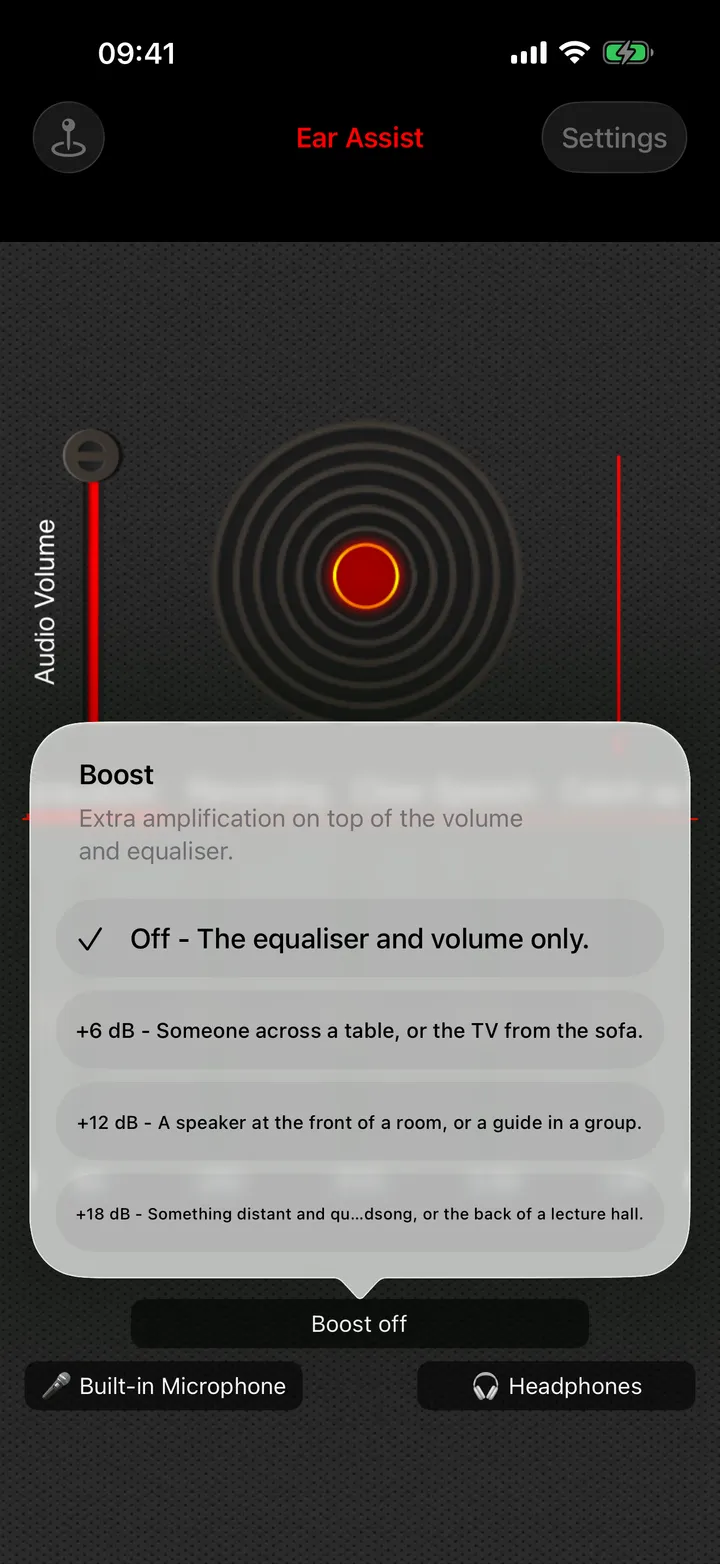
Boost is extra amplification on top of the volume and the equaliser. Tap the Boost button and choose a level:
- Off: the equaliser and volume only.
- +6 dB: someone across a table, or the TV from the sofa.
- +12 dB: a speaker at the front of a room, or a guide in a group.
- +18 dB: something distant and quiet, such as birdsong or the back of a lecture hall.
The Boost button always shows the boost that is really being applied.
Why does the Boost button say off or limited?
- "Boost off - needs headphones": the sound is playing through the loudspeaker. Boost needs headphones or a Bluetooth earpiece, because through the loudspeaker it would squeal.
- "Limited by equaliser": an equaliser slider is turned up. Boost and the equaliser share one limit, so the two together do not distort. Lower the highest slider to get more Boost.
Through the small earpiece at the top of the iPhone, Boost is limited to +6 dB.
What is volume safety?
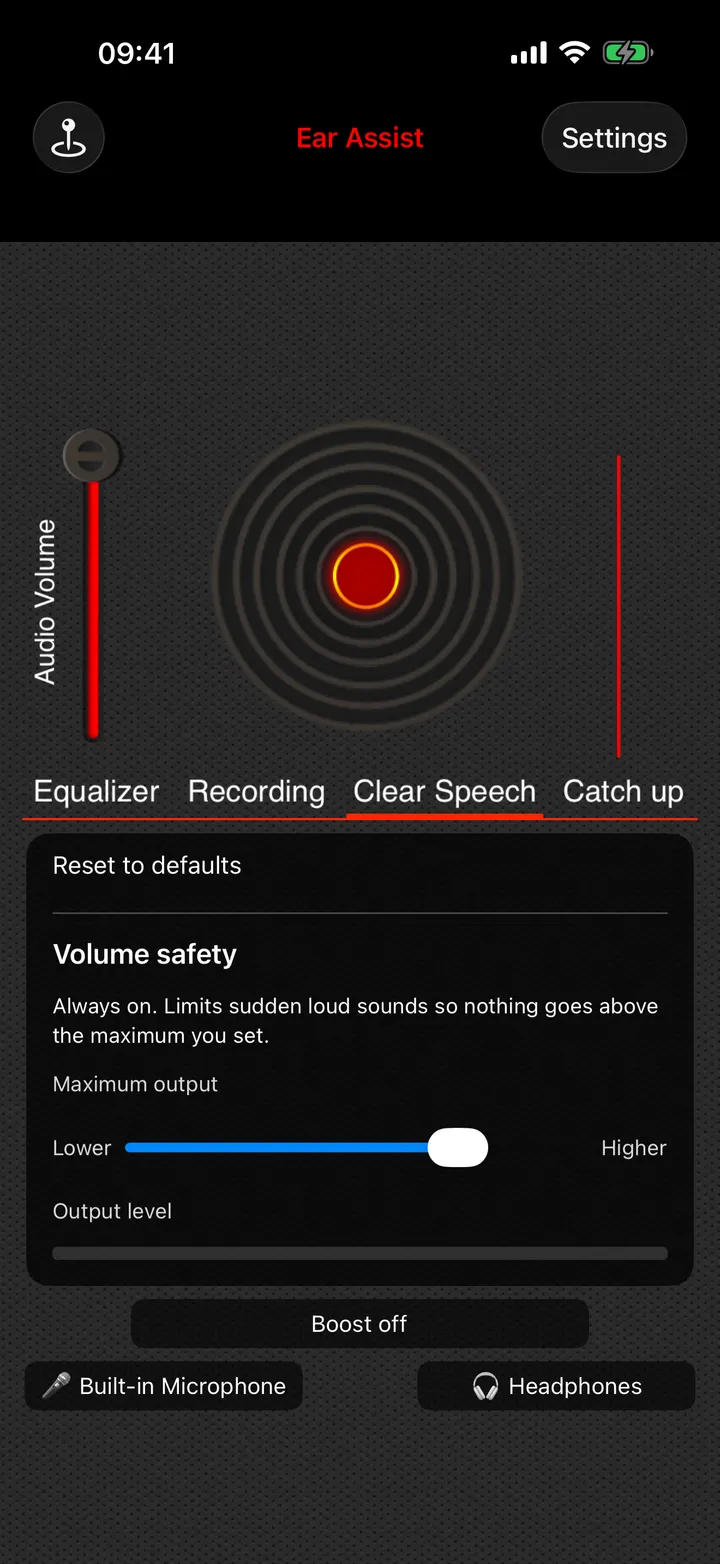
Volume safety is a limit on how loud Ear Assist can play. It is always on. It holds sudden loud sounds, such as a door slamming, below the maximum you set.
You will find it at the bottom of the Clear Speech tab. It is there for everyone, not only for Ear Assist Pro. Slide Maximum output towards Lower or Higher. The Output level bar shows how close the sound is to your maximum.
Volume safety limits loudness in the app. It is not a health feature, so still start low and turn up slowly.
The equaliser
What does the equaliser do?
The equaliser lets you make some parts of the sound louder and others quieter. The app labels its tab Equalizer. The five sliders are there for everyone, free or Pro.
There are five sliders. They run from the lowest sounds on one side (60 Hz, such as rumble) to the highest on the other (14 kHz, such as hiss and fine detail). Slide one up to make that part louder, or down to make it quieter. In the middle it changes nothing.
Which equaliser sliders should I move?
There is no single right setting. As a start for voices, raise the third and fourth sliders a little and lower the first. Small changes are enough.
If you would rather not set the sliders yourself, Places sets them for you. See the section on Clear speech and Places.
How do I save my equaliser settings?
Tap Settings at the top of the main screen. Under Equalizer, tap Save Configuration. Type a name, such as "Living room TV", and tap OK. Ear Assist saves the five sliders and the Audio Volume setting under that name.
How do I load settings I saved earlier?
Tap Settings, then Load Configuration, and tap the name you saved. Ear Assist goes back to the main screen with the sliders and the volume in the saved positions.
Clear speech and Places
What is Clear speech?
Clear speech brings voices forward and turns room noise down. It runs on your iPhone. It is part of Ear Assist Pro and needs iOS 16 or later.
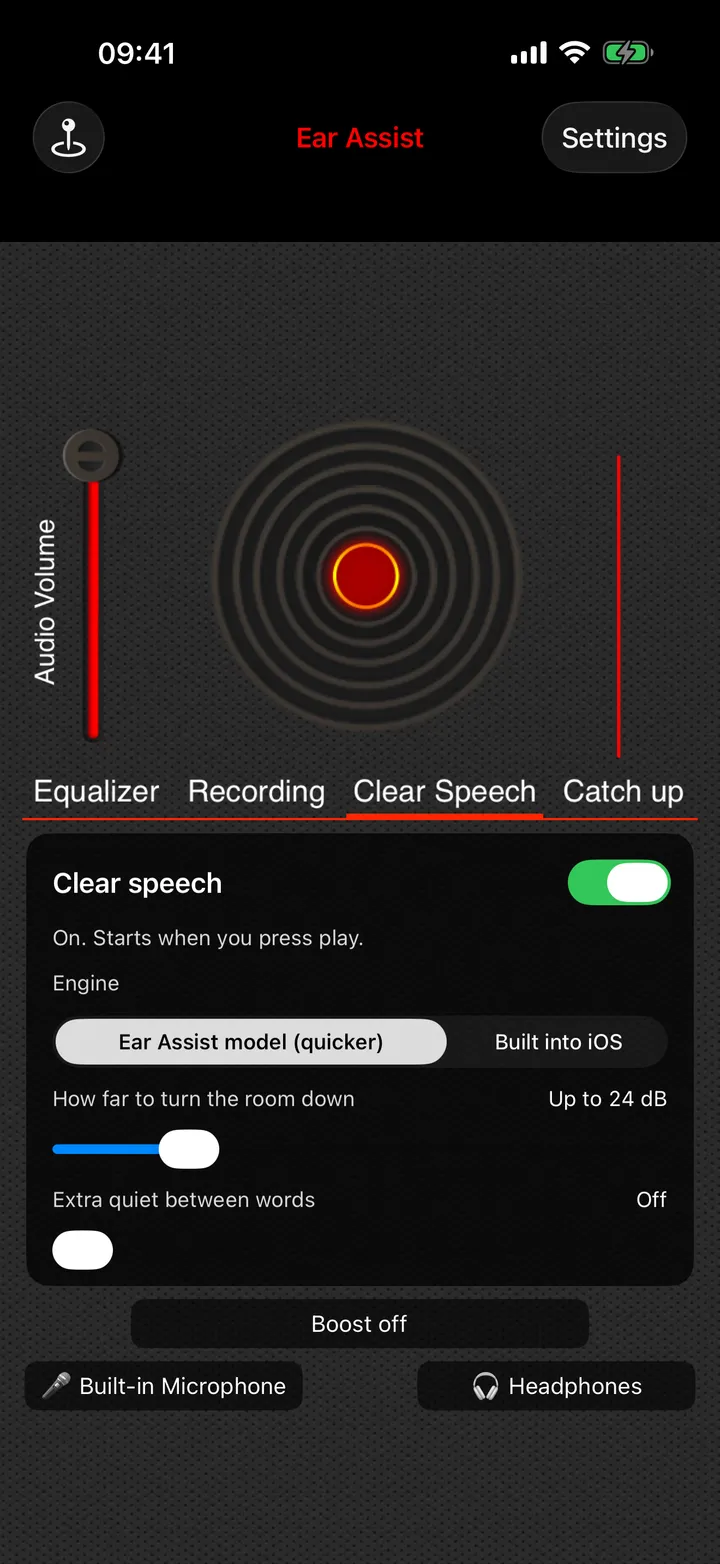
It has its own tab, called Clear Speech. Open the tab and turn the Clear speech switch on. It starts working when you tap Play.
In a very loud room it helps, but it will not take every noise away.
What do the controls on the Clear Speech tab do?
- Engine: choose "Ear Assist model (quicker)" or "Built into iOS". Try both and keep the one you prefer.
- How far to turn the room down: with the Ear Assist model, how much background noise is taken away.
- Extra quiet between words: with the Ear Assist model, makes the gaps between words quieter.
- Strength: with the engine built into iOS, how strongly it works.
- Use on: which outputs Clear speech runs on. The choices are Automatic (not on Bluetooth), Always, and Wired headphones only.
- Hold to hear the original: press and hold to compare with the plain sound.
- Reset to defaults: puts the sliders back as they were.
Why does Clear speech say it is paused on Bluetooth?
Clear speech adds a very short delay of its own, and Bluetooth headphones add more. So to begin with, Clear speech does not run on Bluetooth.
To use it with Bluetooth headphones, open the Clear Speech tab and change Use on to Always.
What is Places?
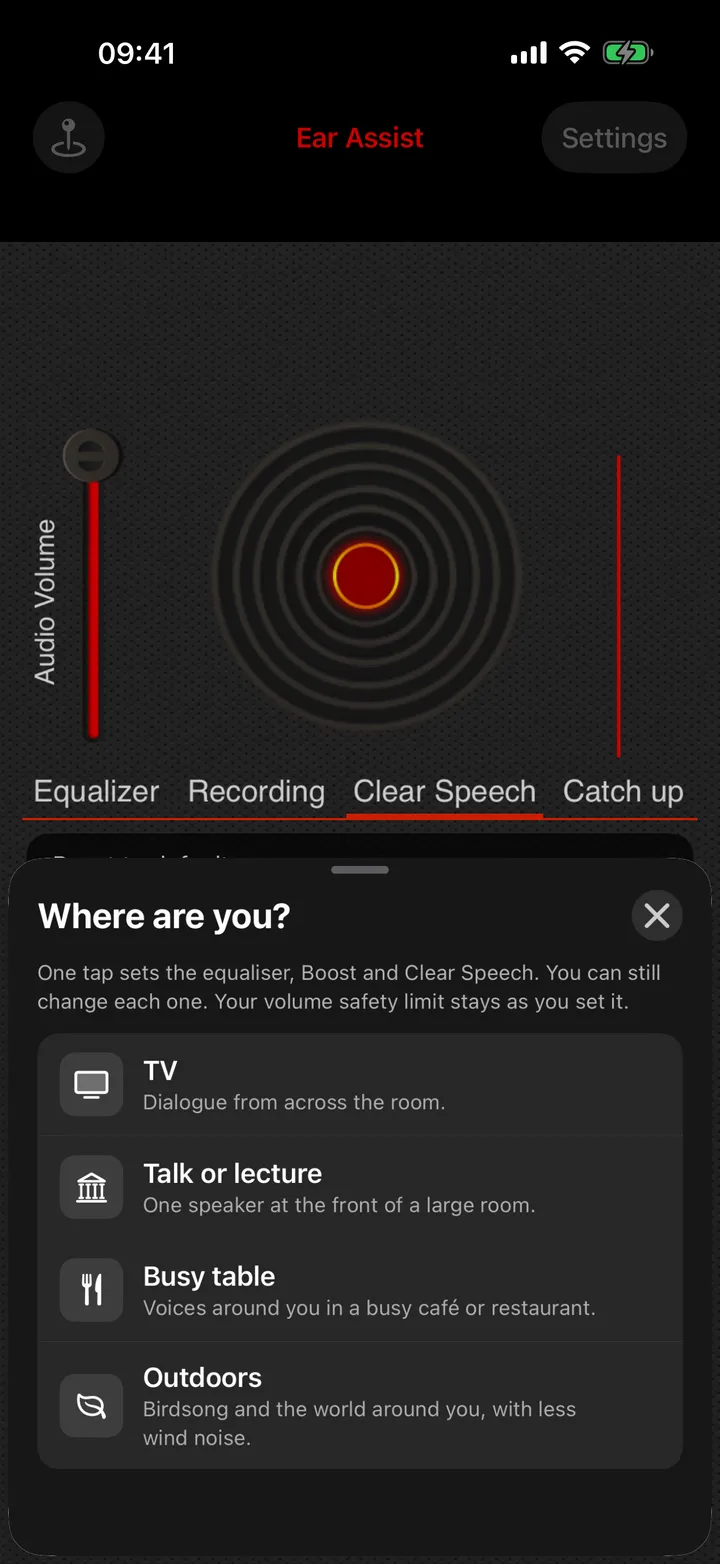
Places sets Ear Assist up for where you are, in one tap. Tap the Places button, at the top left of the main screen. Under "Where are you?" choose a place:
- TV: dialogue from across the room.
- Talk or lecture: one speaker at the front of a large room.
- Busy table: voices around you in a busy café or restaurant. Part of Ear Assist Pro.
- Outdoors: birdsong and the world around you, with less wind noise. Part of Ear Assist Pro.
One tap sets the equaliser, Boost and Clear speech. You can still change each one afterwards. Your volume safety maximum stays as you set it.
Where has Speech mode gone?
Speech mode was removed in version 2.12 because it did not work reliably with Bluetooth headphones. Ear Assist now has one way of listening, so there is no listening mode button.
Clear speech is the feature for bringing voices forward. It is part of Ear Assist Pro.
Recording
Can I record with the free version of Ear Assist?
Recording is part of Ear Assist Pro.
In the free version, the Recording tab sometimes offers a button called "Watch an ad to record for 30 minutes". It appears only when an advert is available, and you can use it up to twice a day. A recording you start in that time is not cut off when the 30 minutes end, and the recordings you make stay yours to play.
How do I record in Ear Assist?
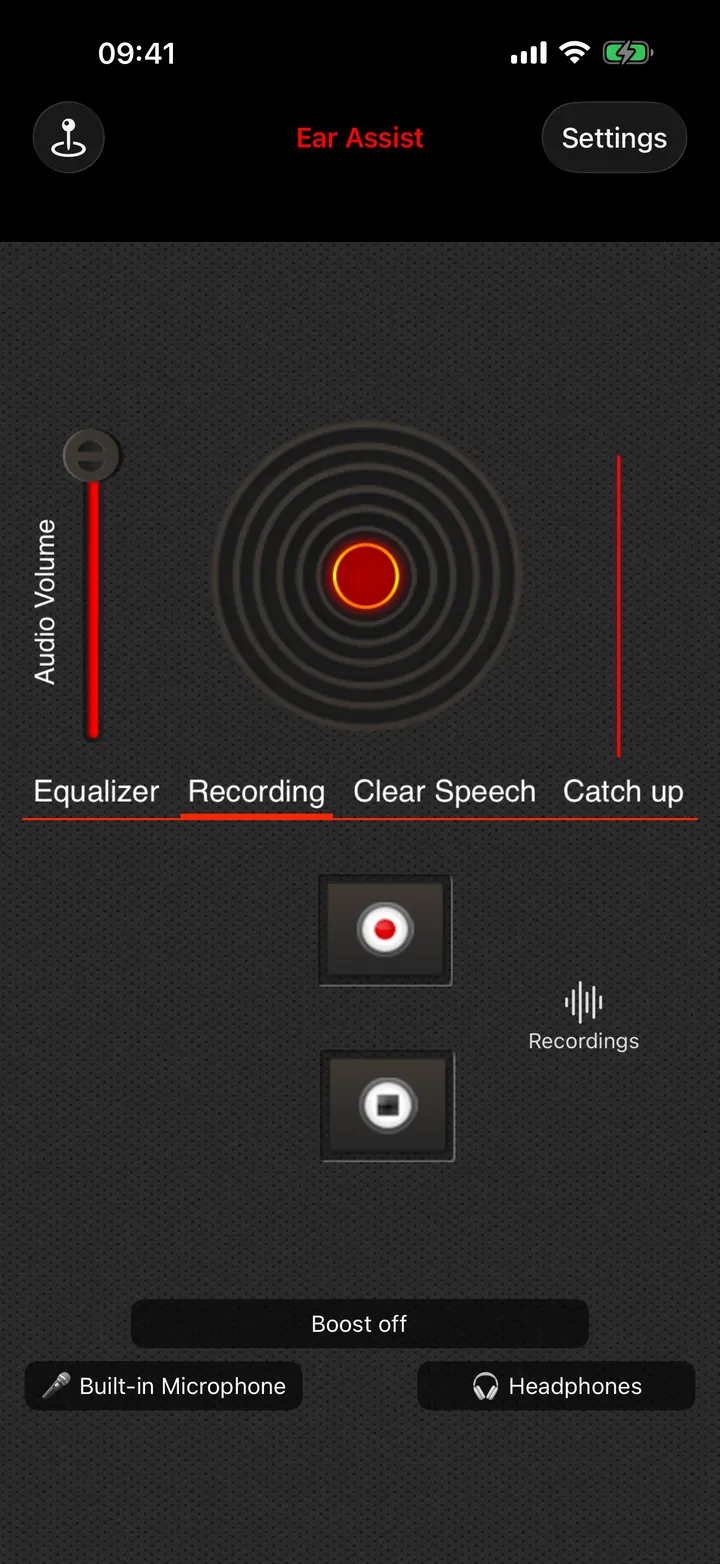
- Open the Recording tab.
- Tap Start Record. If Ear Assist is not already listening, it starts listening as well.
- Tap Stop Record when you have finished.
- Type a name, or keep the one suggested, and tap Save.
If you tap Cancel instead of Save, the recording is thrown away.
Recording starts only when you tap Start Record. Please ask permission before you record other people.
Can I record while I am listening?
Yes. Tap Start Record at any time while you are listening. You carry on hearing the sound while it records.
When you tap Stop Record, listening carries on if you were already listening before. If the recording started the listening, both stop together.
Where are my recordings?
Tap Recordings, beside the record buttons on the Recording tab. On a small screen it may show as an icon without the word. The same list is in Settings: tap Settings at the top of the main screen, then Recordings.
Recordings are saved on your iPhone as M4A files. Ear Assist does not upload them.
How do I play, share or delete a recording?
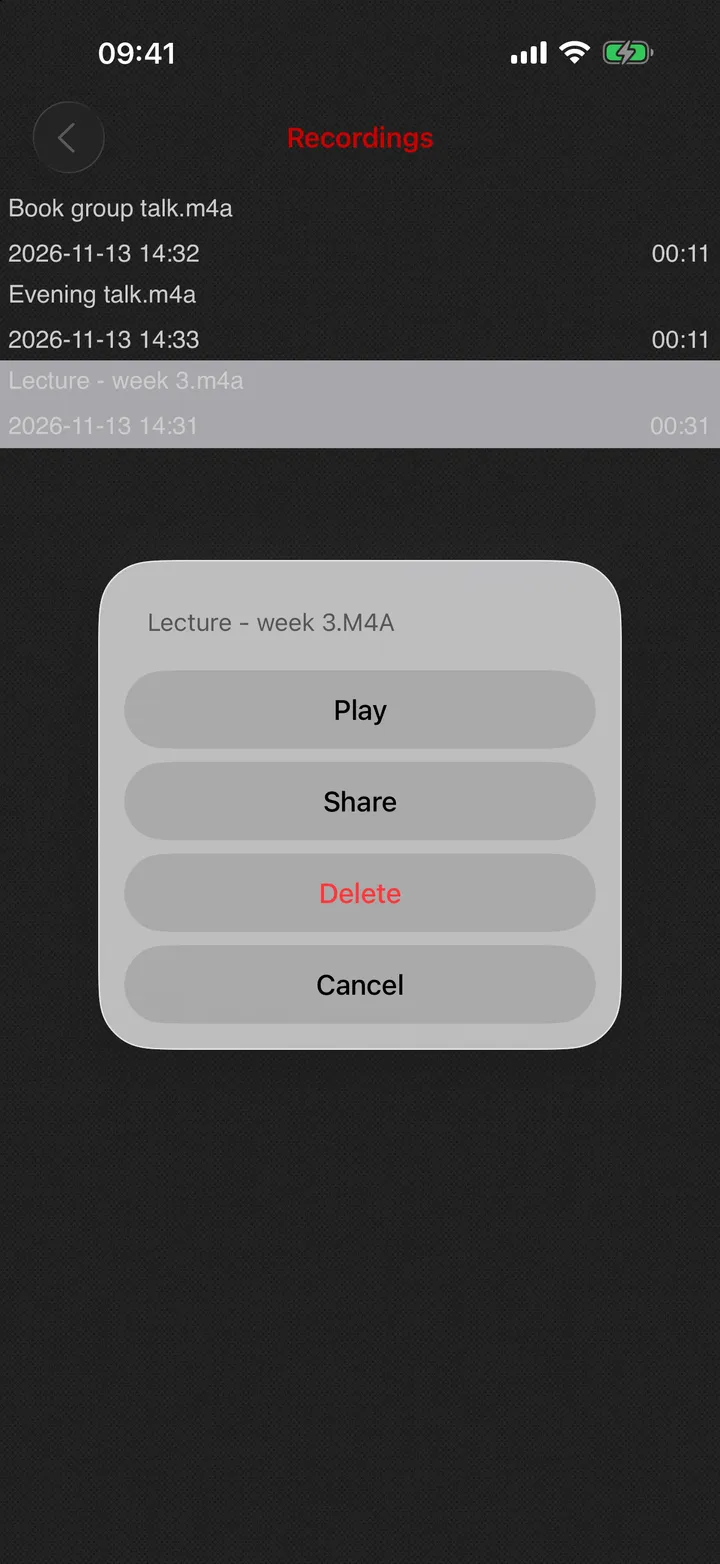
Open your recordings and tap the one you want. Then choose Play, Share or Delete.
Share opens the usual iPhone sharing list, so you can send the file by message or email, or save it to Files. Delete asks you to confirm first. A deleted recording cannot be brought back.
What happens to my recording if a phone call comes in?
The recording pauses, and everything recorded so far is kept. Ear Assist shows a message called "Recording paused".
After the call, tap Play to carry on recording, or tap Stop Record to save what you have.
What happens if my iPhone runs low on storage while recording?
Ear Assist tells you when storage is low and roughly how many minutes are left. Recording stops by itself before the iPhone is full, and keeps what it has.
If there is not enough room to start at all, free up some space in the iPhone Settings app under General, then iPhone Storage, and try again.
The live sound line
What is the moving line on the main screen?
It is a live picture of what the microphone hears. It moves with the sound, and lies straight when the room is silent or when Ear Assist is not listening.
It only shows the last moment of sound. Nothing is kept and nothing leaves your iPhone.
It is a handy check. If the line moves but you hear nothing, the microphone is working, so look at your headphones and the volume.
Catch up: live captions and replay
What is the Catch up tab?
Catch up helps when you miss something that was said. It has two tools: live captions, and a button to hear the last 10 seconds again. Catch up is part of Ear Assist Pro.
How do live captions work?
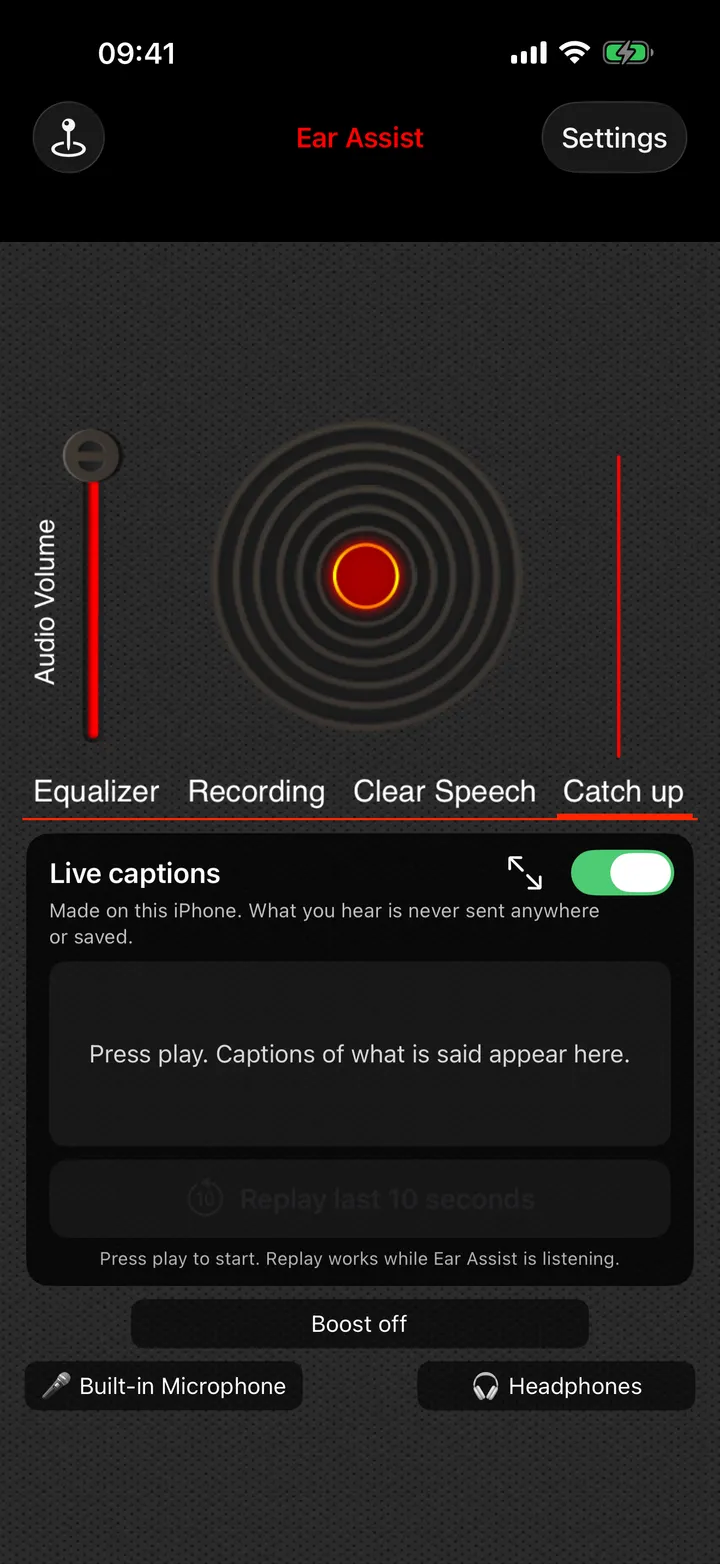
Live captions show what is being said as large text. Open the Catch up tab, turn on Live captions and tap Play.
The first time, your iPhone asks you to allow speech recognition. The captions are made on your iPhone. What you hear is not sent anywhere and is not saved.
You can change the caption text size and show the captions full screen. Captions can make mistakes, especially in a noisy room.
Some iPhones cannot make captions on the device for every language. Where that is so, Ear Assist says so and leaves captions off. It never sends sound away to make them.
How do I hear the last few seconds again?
While you are listening, open the Catch up tab and tap Replay last 10 seconds. Tap Back to live to return to the sound around you.
The last few seconds are kept in memory only, and are cleared when you stop listening or leave the tab.
Ear Assist Pro
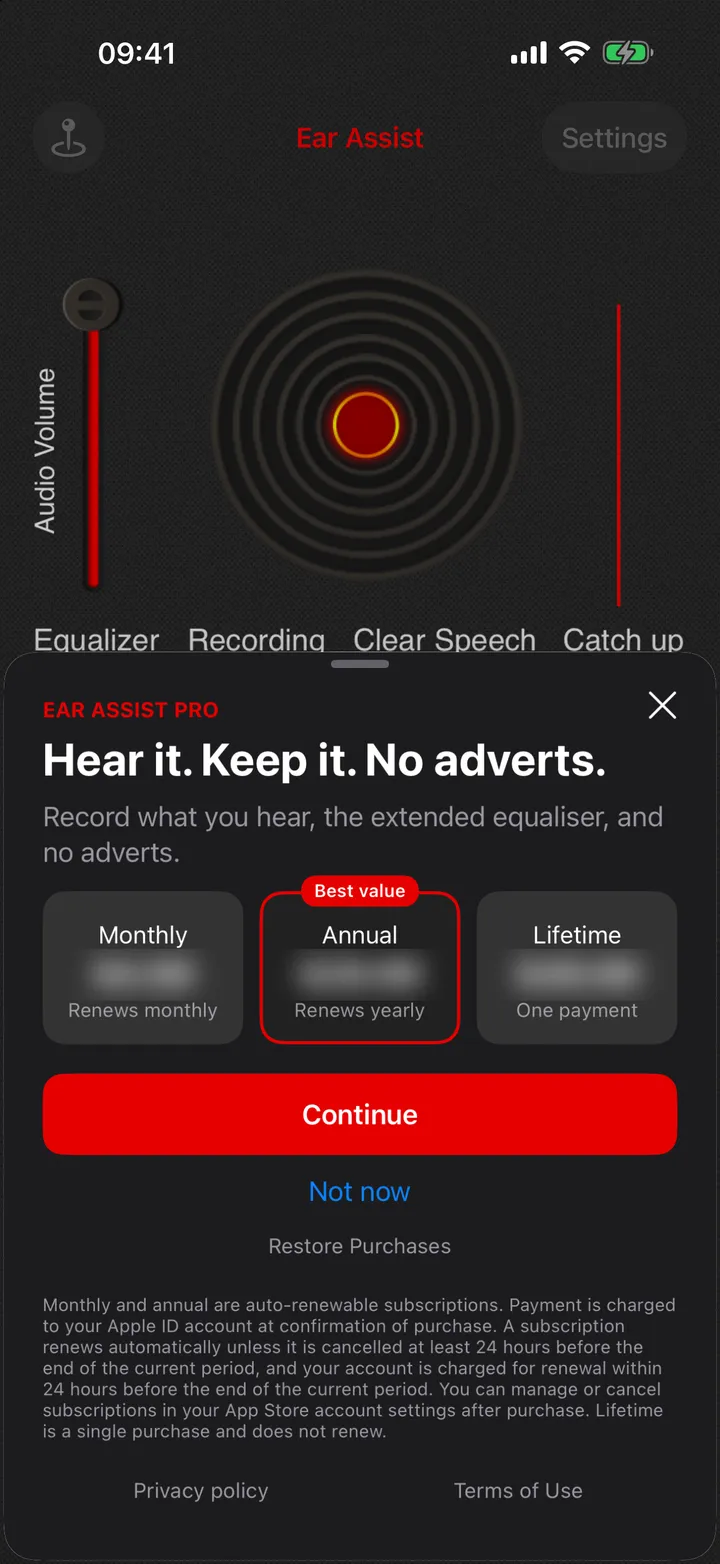
What does Ear Assist Pro add?
- No adverts.
- Recording: record what you hear and keep the recordings.
- Clear speech.
- Catch up: live captions and replay.
- The Busy table and Outdoors places.
How much does Ear Assist Pro cost?
Prices are shown in the app before you buy, in your own currency. There are three choices: Monthly and Annual, which are subscriptions, and Lifetime, which is one payment.
If a free trial is offered, the app shows how long it lasts, the price afterwards and the date of the first charge before you start. Ear Assist can also remind you 2 days before the trial ends.
I paid for a feature in an older version. Do I need to pay again?
No. If you bought any upgrade in an earlier version of Ear Assist, Pro is included with that purchase. If it does not show, open Settings and tap Restore Purchases.
How do I restore my purchase on a new iPhone?
Make sure the iPhone is signed in with the same Apple ID you used to buy. Tap Settings at the top of the main screen, then Restore Purchases.
If Ear Assist says no previous purchases were found, check which Apple ID the iPhone is using.
How do I manage or cancel my Ear Assist Pro subscription?
Subscriptions are handled by Apple, not by us. In Ear Assist, open Settings and tap Manage subscription. Or open the iPhone Settings app, tap your name, tap Subscriptions and choose Ear Assist.
A subscription renews by itself unless you cancel at least 24 hours before the end of the current period. Deleting the app does not cancel a subscription. Lifetime is a single purchase and does not renew.
The Settings screen
How do I open Settings in Ear Assist?
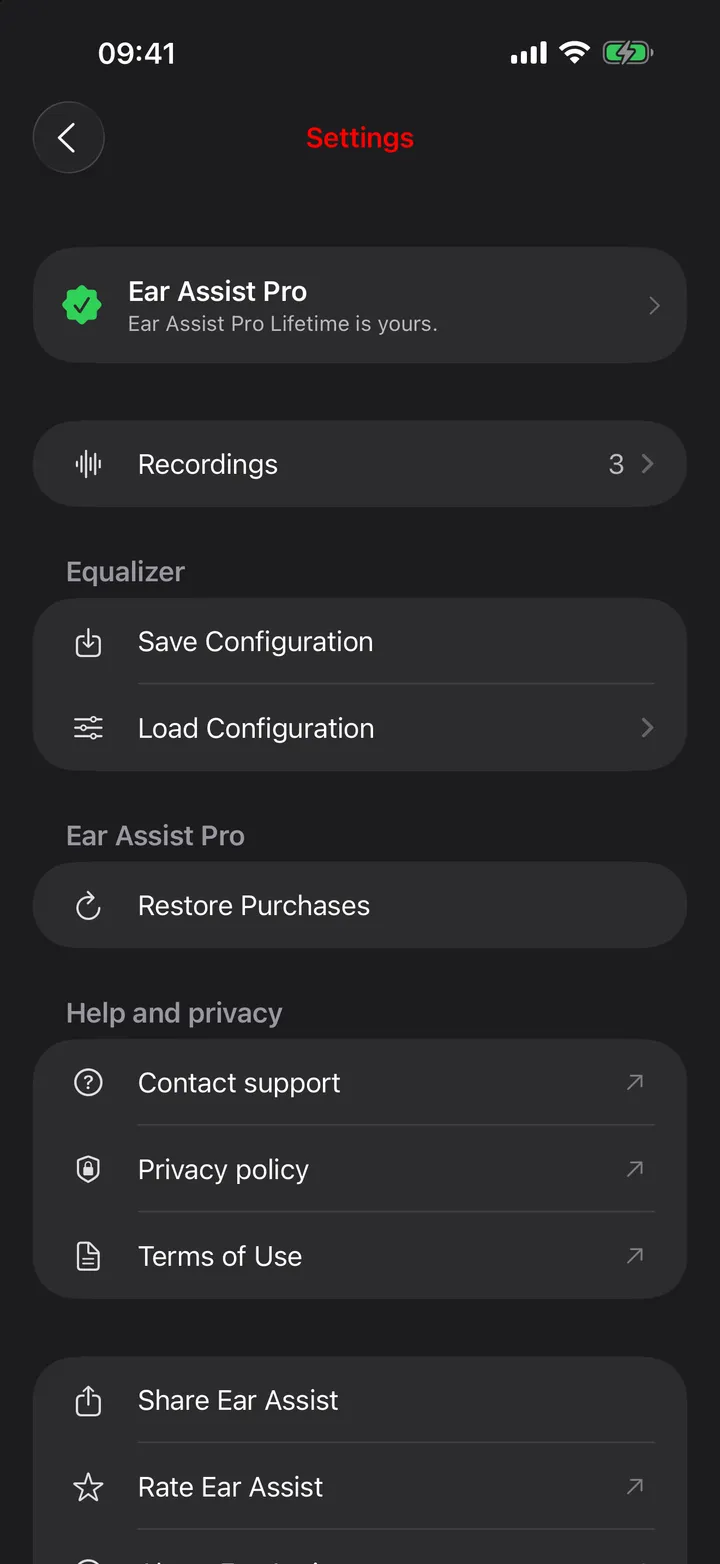
Tap Settings, at the top right of the main screen. Everything is on one screen.
What is on the Settings screen?
- Ear Assist Pro, at the top: what Pro offers, or a line saying your Pro is active.
- Recordings: the recordings you have saved. If an older version of the app left any unsaved recordings, Recover unsaved recordings appears here too.
- Equalizer: Save Configuration and Load Configuration.
- Ear Assist Pro: Restore Purchases, and Manage subscription if you have a subscription.
- Help and privacy: Contact support, Privacy settings where your region has them, Privacy policy and Terms of Use.
- Share Ear Assist, Rate Ear Assist and About Ear Assist.
The version of the app is shown at the bottom of the screen.
Adverts and privacy choices
Why does Ear Assist show adverts?
Adverts pay for the free version. Ear Assist Pro removes them.
Full-screen adverts are not shown while you are listening or recording.
How do I change my advert privacy choices?
In the UK, the EEA and Switzerland, Ear Assist asks for your consent before it shows adverts. You can change your answer at any time: open Settings and tap Privacy settings, under Help and privacy. The row is shown only where it applies.
Your iPhone may also ask whether Ear Assist may track your activity. That question comes from Apple. Ear Assist works the same whichever answer you give.
Privacy
Does Ear Assist send my sound anywhere?
No. Sound is processed on your iPhone and played to your headphones. Live sound is not stored or sent anywhere.
Recordings are saved on your iPhone only. Ear Assist never uploads them. Ear Assist has no accounts and does not ask for your name or email address.
The free version shows adverts, and the app uses analytics and crash reporting. The privacy policy explains what those services collect.
Read the Ear Assist privacy policy
Troubleshooting
I tap Play but I cannot hear anything. What should I check?
- Check your headphones are connected, and that the output button on the main screen shows them.
- Slide Audio Volume up, and turn up the volume on the iPhone itself.
- Look at the sound line. If it moves when there is sound, the microphone is working.
- If the line stays flat, check the microphone is allowed: open the iPhone Settings app, find Ear Assist and turn Microphone on.
Why is the sound coming from the phone speaker instead of my headphones?
Tap the output button on the main screen and choose your headphones from the list.
If your Bluetooth headphones are not in the list, they are not connected to the iPhone. Connect them in the iPhone Settings app under Bluetooth, then tap Play again.
Why did Ear Assist stop by itself?
Ear Assist stops when the sound moves from your headphones to the iPhone itself. That happens when headphones disconnect, or when iPhone is chosen in Control Centre. Stopping avoids a loud squeal from the loudspeaker.
If that happens as you tap Play, Ear Assist says that iOS moved the sound from your headphones and that it did not start. Check your headphones are connected, then tap Play again.
Why do I hear an echo or a whistling sound?
A whistle or squeal is feedback. The microphone is hearing the sound that Ear Assist is playing. Use headphones instead of the loudspeaker, and turn Audio Volume or Boost down.
An echo usually means you can hear the real sound and, a moment later, the same sound through Bluetooth headphones. Wired headphones have the least delay.
Why does Ear Assist stop when a phone call comes in?
Your iPhone gives the microphone to the call, so Ear Assist has to stop.
After the call, Ear Assist starts again by itself only when the iPhone tells it to. If it shows Play, tap Play. A recording in progress is paused and kept.
What does "Listening could not start" mean?
Another app or a call may be using the microphone. Close the other app or end the call, wait a moment and tap Play again.
Can I get rid of the Bluetooth delay?
Not fully. The delay comes from Bluetooth itself. Use wired headphones where the delay bothers you. If Clear speech is on, the Clear Speech tab shows how much delay it adds.
Why can I not find a recording I made?
- A recording is kept only if you tap Save after Stop Record. Cancel throws it away.
- If Ear Assist or the iPhone closed during a recording, open Ear Assist again. The recording is put in your recordings with "(recovered)" in its name.
- Recordings live on the iPhone they were made on. Deleting the app deletes its recordings.
I bought Ear Assist Pro but it is not showing. What should I do?
- Check the iPhone is online.
- Open Settings in Ear Assist and tap Restore Purchases.
- Check the iPhone is signed in with the Apple ID you bought with.
If your purchase is waiting for approval, for example with Ask to Buy, Pro unlocks as soon as it is approved. If it still does not show, contact us.
Getting help
How do I get help with Ear Assist?
Email support@overpass.co.uk, or open Settings in the app and tap Contact support, which opens our support page. It helps if you tell us which iPhone you have, which headphones you use, and what you were doing when the problem happened.
Ear Assist is made by Overpass Limited, a small software company in the UK.
Email: support@overpass.co.uk
