
PrivacySweep user manual
For PrivacySweep 1.0 on iPhone. Last updated 26 October 2026. This page prints cleanly if you want a paper copy.
A note from Eric
I have been making apps for about 25 years, and I am the only developer at Overpass. I built PrivacySweep because I kept seeing "spy camera finder" apps that flash a red radar at you and charge for the privilege. A phone cannot do what those apps claim. I think you deserve better than a scare.
So this app does something smaller and more honest. It walks you round the room in a sensible order, lets your phone show you the few things it genuinely can, explains each one in plain words, and keeps a private record. If something in here is unclear, or the app does something this manual does not describe, email me. I read every message.
Eric, Overpass
Getting started
PrivacySweep runs on iPhone. There is nothing to sign up for. Install it, open it, and you are ready.
The first screen: Before you start
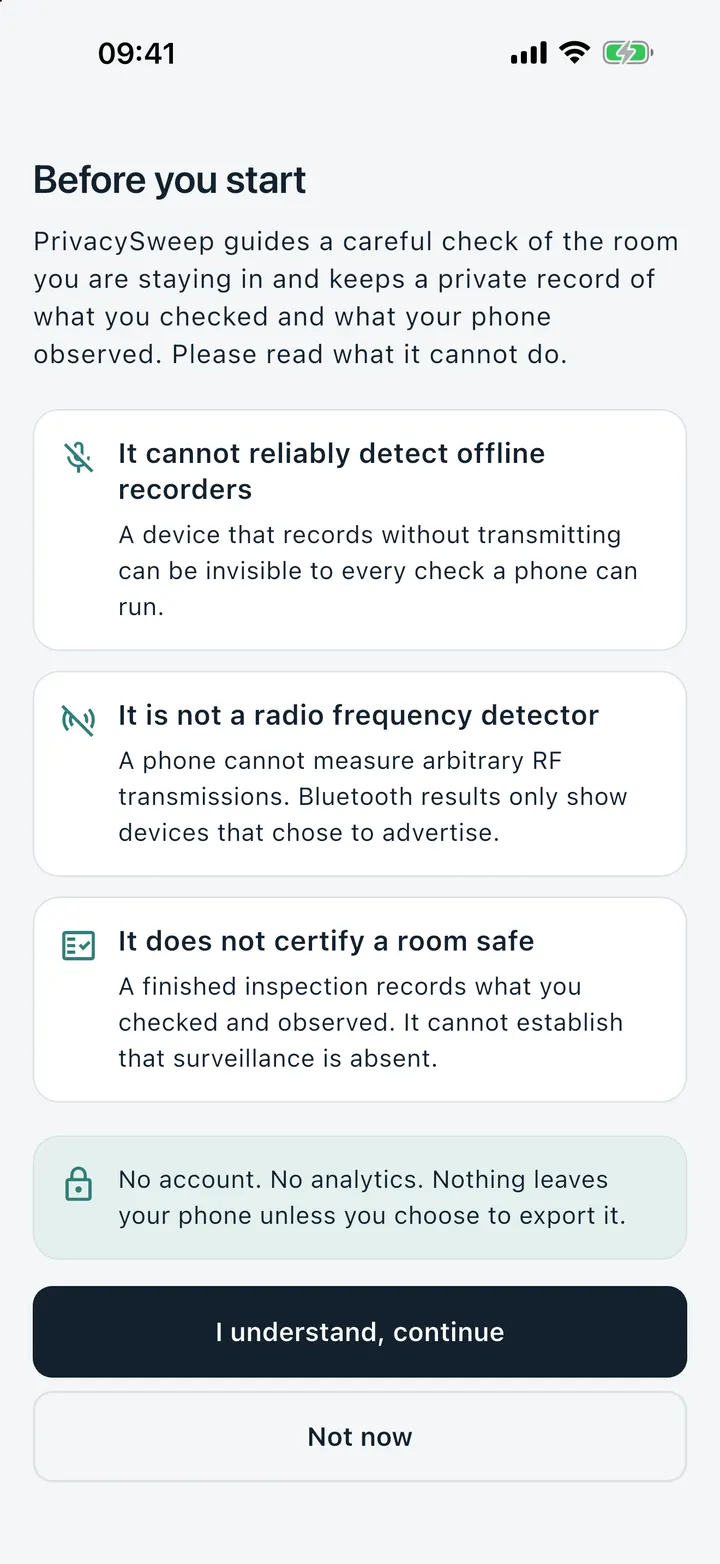
The first time you open the app it shows Before you start, which lists what the app cannot do:
- It cannot reliably detect offline recorders. A device that records without transmitting can be invisible to every check a phone can run.
- It is not a radio frequency detector. Bluetooth results only show devices that chose to advertise.
- It does not certify a room safe. A finished inspection records what you checked and observed.
Please read it. Then choose one of three buttons:
- I understand, continue takes you to the home screen.
- Read the checklist first shows the whole checklist without starting anything.
- Not now leaves things as they are. Nothing is saved and no permission is asked for.
PrivacySweep never asks for a permission up front. Bluetooth, local network, camera and, on Android, location are each asked for only when you start the look that needs them. If you say no, the checklist still works.
The home screen
From top to bottom, the home screen shows:
- Continue your inspection, if one is in progress, with how many physical checks you have recorded. Below it sits a card with the optional looks, one tap away.
- Start an inspection, to begin a new one.
- Read the checklist, to read every check without starting.
- Saved inspections, newest first. A finished inspection you did not save is labelled Finished, not saved.
- The cog icon at the top right opens Settings.
Unsaved inspections are deleted automatically 24 hours after they were started. Save the ones you want to keep.
Starting an inspection
- Tap Start an inspection.
- Optionally, name the space, for example "Room 214". If you leave it blank the app uses the date and time.
- Optionally, pick a room type: Hotel room, Short-stay rental or Other.
-
Choose a checklist:
- Quick inspection: 12 checks, about 5 to 10 minutes.
- Full inspection: 30 checks, about 15 to 25 minutes.
- Tap Begin.
Your progress is saved as you go. If your phone rings or the app closes, open it again and tap Continue your inspection.
Working through the checklist
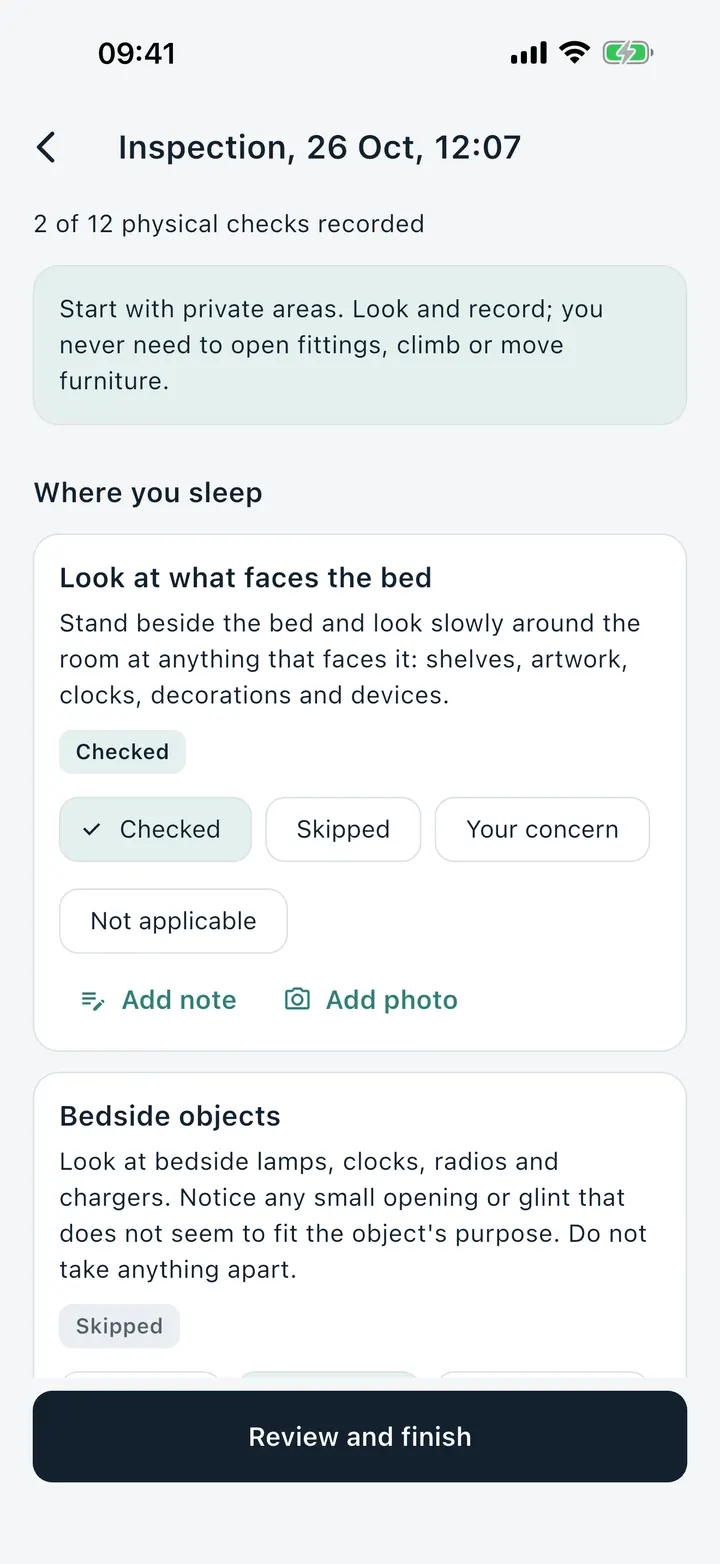
The checklist is grouped by area, starting with the most private ones: where you sleep, the bathroom and where you change. Then living areas, power and fittings, and the whole room. A tip at the top reminds you that you only ever look and record. You never need to open fittings, climb or move furniture.
Marking a check
Read the instruction on each card, look, then tap one of:
- Checked: you looked.
- Skipped: you chose not to, or could not.
- Your concern: something made you want a record. See If something concerns you.
- Not applicable: the room has no such thing, for example no wardrobe.
Tap the selected state again to clear it, and the check goes back to Not checked. You can work in any order and come back to a check later.
Notes and photos
- Add note opens a box that asks "What did you notice?". Type and tap Save.
- Add photo opens the camera. The app asks for camera access the first time.
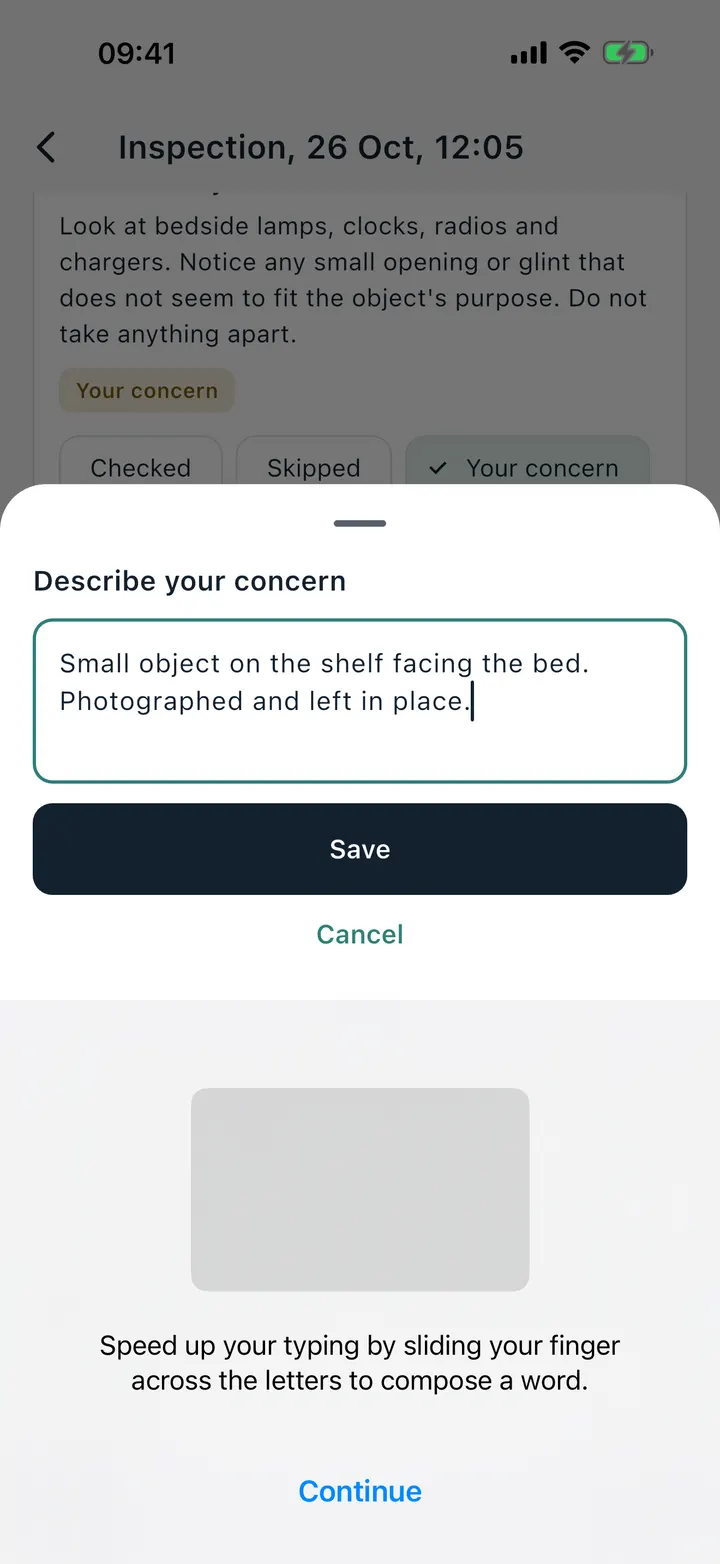
Photos stay inside PrivacySweep. They are not added to your photo library, and location and camera details are removed from them. The count beside Add note and Add photo shows how many each check holds.
The quick checklist at a glance
| Area | Check | What you look at |
|---|---|---|
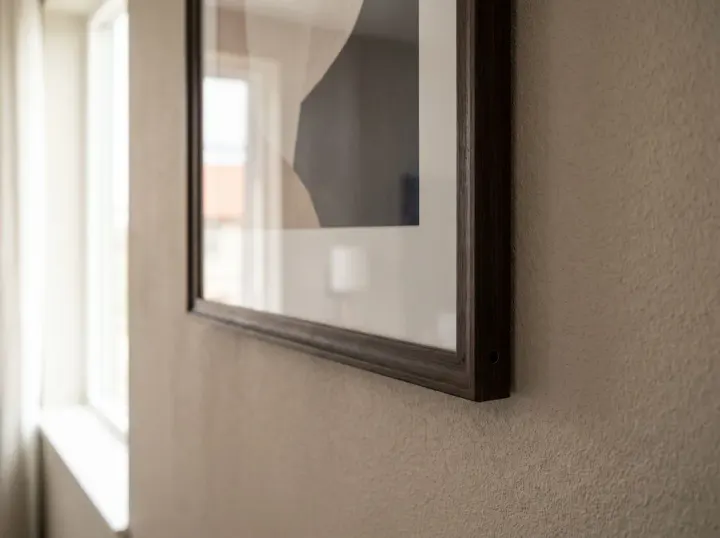
| Where you sleep | Look at what faces the bed | Shelves, artwork, clocks, decorations and devices that face the bed. |
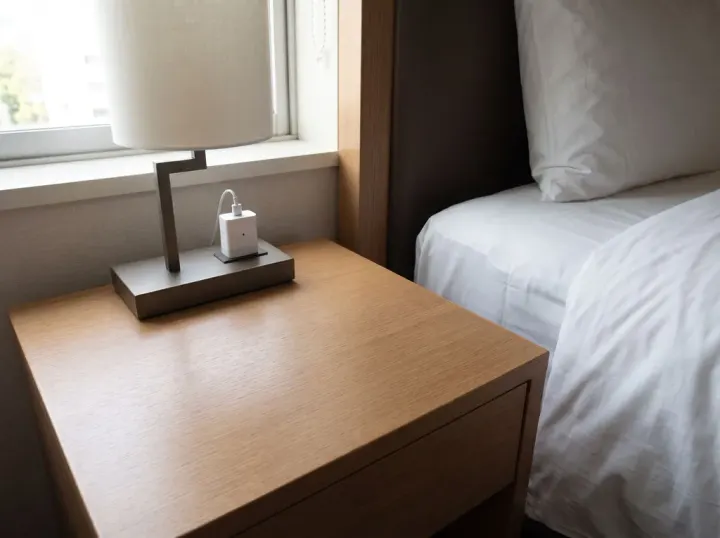
| Where you sleep | Bedside objects | Lamps, clocks, radios and chargers. Any small opening or glint that does not fit the object. |
| Bathroom | Objects facing the shower, bath or toilet | Shelves, hooks, dispensers, air fresheners and devices. |
| Bathroom | Bathroom mirror and fittings | Anything mounted in an unusual way, seen from where you stand. |
| Where you change | Where you would change | The wardrobe, any full-length mirror and what faces them. |
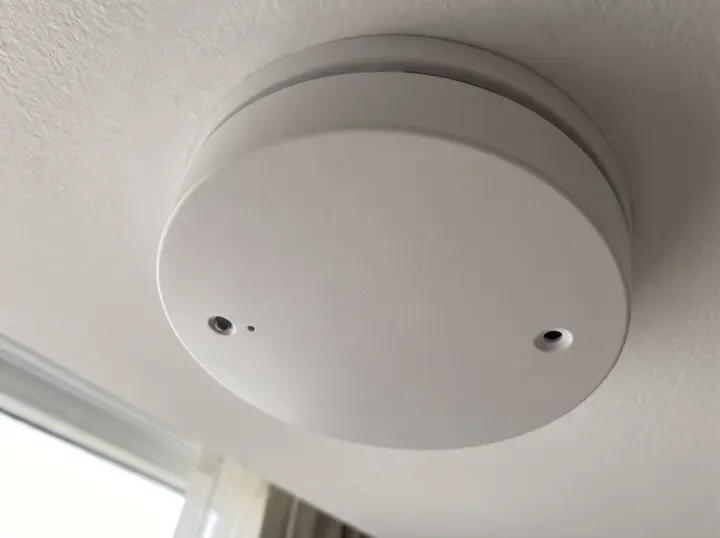
| Power and fittings | Ceiling fittings, seen from the floor | Smoke detectors, sprinklers, vents and lights compared with similar fittings. |
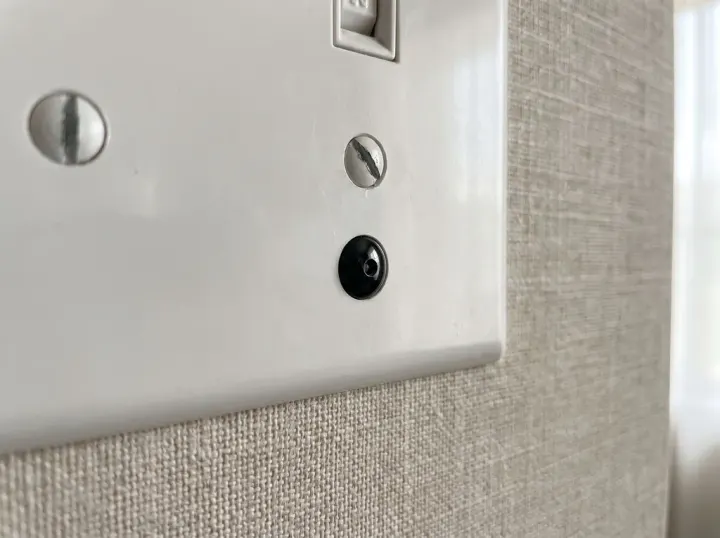
| Power and fittings | Things plugged in | Adaptors, chargers and extension leads with no obvious purpose. |
| Whole room | Shaded places, with a torch | Shelves, gaps and corners you can see without moving furniture. |
| Whole room | Unusual placement or alterations | Odd angles, fresh holes or filler, tape, or items that look recently added. |
| Living and work area | Televisions and smart devices | Usually ordinary. Note whether any face a private area. |
| Whole room | Compare with what was disclosed | If the listing or house rules mention devices, compare what you see. |
| Whole room | Record anything you want to remember | A note or photo for anything you want a record of. |
The full checklist covers the same ground in more detail, adding the headboard, decorations, the toilet, the extractor fan, dressing mirrors, the desk, seating, sockets and switches, cables that lead nowhere obvious, the room with the lights off, and windows and sight lines.
Smoke detectors protect your life. The checklist asks you to look at them from the floor only. Never climb, touch, cover or remove them.
What to look for
Open Read the checklist from the home screen and tap See examples. The app shows illustrations of everyday objects and the one detail on each that is worth a second look, with where it tends to be. Inside an inspection, each check has a "What to look for" sheet tied to it.
These are teaching pictures to train your eye. They are not photos of your room and they prove nothing about it.
The optional looks
While an inspection is in progress, a card titled Optional: a 30-second look at Bluetooth and your network sits at the top of the checklist and on the home screen. Its buttons are Bluetooth look, Network look and Infrared look. The Bluetooth and network looks are also listed under Optional tools at the bottom of the checklist, with their latest status.
Every look is optional. Your inspection is complete without them. Each one lists what nearby devices announce about themselves. None of them shows whether anything records.
Bluetooth look
- Tap Bluetooth look. The screen explains what the look does and what it cannot do.
- Tap Start 30-second check. The first time, your phone asks for Bluetooth permission.
- Stay on the screen. A counter shows "Observing: 12 of 30 seconds". Results appear as they arrive.
- Tap Stop check to end early, or let it run to 30 seconds.
Each result shows the name the device supplied, or No name supplied, how many services it advertised and when it was last seen. At the end you see a line such as "7 Bluetooth advertisements observed. These do not establish whether a device is recording."
PrivacySweep never pairs with, connects to or sends anything to a Bluetooth device. It only reads the advertisements your phone receives.
What the result status means
| Status | Meaning |
|---|---|
| Check completed | The 30-second window finished. |
| Stopped by you | You tapped Stop. Anything seen so far is kept, but the check is not counted as complete. |
| Interrupted | You left the screen or the app. Anything seen so far is kept. |
| Interrupted: Bluetooth turned off | Bluetooth was switched off during the look. |
| Not run: permission not granted | You declined Bluetooth permission. You can allow it in Settings later. |
| Not run: access restricted | Device management or Screen Time blocks Bluetooth for apps. |
| Not run: Bluetooth is off | Turn Bluetooth on in your phone's settings and try again. |
| Not run: location services are off | Android 11 and earlier only. That version of Android needs location services on for any Bluetooth scan. PrivacySweep does not use your location. |
| Not available on this device | The phone cannot scan for Bluetooth Low Energy. |
If nothing appears, you will see "No Bluetooth advertisements observed during this check. Some devices do not advertise or may not be visible to your phone." That is not an all-clear.
Reading an observation
Tap any result to open it. The observation screen has separate parts:
- Method and Observed: which look saw it, and when.
- What was received: the raw facts, such as the name and services the device broadcast.
- What this means: a neutral explanation, for example "This device advertised nearby during your check."
- What this looks like: the app's reading of the evidence, in one of three forms.
- "Looks like a speaker." The evidence points clearly one way.
- "May be a speaker." The evidence is suggestive but weaker.
- "Nothing identifies this." The broadcast carries nothing the app can read.
- Why this is not proof: why the reading could be wrong.
- Your label: type your own name for it, such as "my headphones".
A device name is chosen by whoever set the device up, so the app shows names but never uses them to decide what something is. Health-related details in a broadcast, such as from a fitness or medical sensor, are withheld, because in a hotel the nearest advertiser is often a neighbour's.
Labels help you sort what is yours from what is not. Label your own phone, watch and headphones, and what is left is the part worth a second look.
Walk towards it
From a Bluetooth observation, tap Walk towards it. For one minute the app follows the signal strength of that one advertiser. Walk slowly and watch the bar. It reads Getting warmer, Getting colder or Holding steady.
Signal strength is not distance. Walls, bodies and metal push it around, so treat it as a rough hint, not a measurement. The app never shows metres or a direction. Tap Stop at any time.
Network look
The network look asks the Wi-Fi network your phone is joined to which devices and services announce themselves on it. It reads what they broadcast, never signs in to anything and never opens a video or audio stream.
- Join the room's Wi-Fi, if you have not already.
- Tap Network look and read the explanation.
- Tick I am allowed to inspect this network. Only look at a network you have permission to examine, such as the one provided for your own room.
- Tap Start 30-second look. Your phone may ask for permission to find devices on the local network.
- Wait, or tap Stop look.
Results show what each device announced, with a "looks like" reading where the announcement supports one. It is a partial list, not a full scan. Many devices do not answer standard announcements, and hotel networks often keep guests apart, so an empty result reads "No services were announced during this look. Network isolation or device settings may limit what is visible."
On iPhone, this version uses Bonjour only, which is how Apple devices, printers and many smart speakers announce themselves. The app says "Bonjour only on this device" on the look screen. Android phones also listen for two other standard kinds of announcement used by televisions, media boxes and network cameras.
If your phone is not on Wi-Fi, the look shows Not run: no network connection.
Wi-Fi look (Android only)
The Wi-Fi look is on Android only. iPhones do not let apps list nearby networks, so on iPhone the looks card has no Wi-Fi look button.
On Android, tap Wi-Fi look, then Scan once. It lists the Wi-Fi networks your phone can see nearby at the time of the scan, each marked Open network or Secured network, with a count of how many it saw. It never joins a network. Android allows a phone only a few Wi-Fi scans every few minutes, so the look does one scan. If the scan returns nothing, the phone may still be gathering results; try again shortly.
Android only lists nearby networks to apps with location access, so the look asks for location. PrivacySweep uses it for nothing else.
A network name is chosen freely and can be anything. Seeing a network does not show a camera, where a device is, or who owns it. The networks are saved with your sweep, like the other looks.
Infrared and lens-glint look
Tap Infrared look. This is a manual aid. It shows the camera preview and nothing else. It does not analyse the picture, does not capture anything and cannot tell you whether a camera is present. Nothing on this screen is stored or sent.
Infrared (front camera)
- Turn the room lights off and close the curtains.
- Tap Start the preview. The first time, the app asks for camera access.
- Hold the phone at arm's length, screen towards you, and pan slowly across the room.
- Pause on objects that face the bed, the shower or the desk. Look for a small steady dot of light that you cannot see without the phone.
Lens glint (back camera and torch)
- Tap Switch to lens glint, then Torch on.
- Hold the phone near your eye and pan slowly.
- A lens can return a pinpoint reflection that stays put as you move a little. Most shiny surfaces smear or move.
Many cameras use no infrared, some phones filter infrared out of the front camera, and remote controls and other electronics show dots too. Many harmless things glint. A dot or a glint is something to look at more closely, not proof. Look only: do not open, remove, climb on or damage anything.
Looking again
You can run a look more than once. Before a repeat, the app reminds you that a new result will not resolve the uncertainty of the last one, and offers Run another check.
A repeat look is shown against your first: "Since your first look, 2 things appeared and 1 is no longer seen." New items are marked New since last look. Devices come and go as neighbours move about, so a change is not a finding on its own.
If something concerns you
Mark the check as Your concern. The app then shows calm next steps:
- Document what you can see. Add a note and, if you wish, a photo. Do not move, open or take the object apart.
- If you feel uncomfortable, you can leave the area.
- You can contact the property management or your booking platform and describe what you saw.
- If you have concrete evidence of recording, you can contact the police. In the UK, call 101 for non-emergencies or 999 in an emergency.
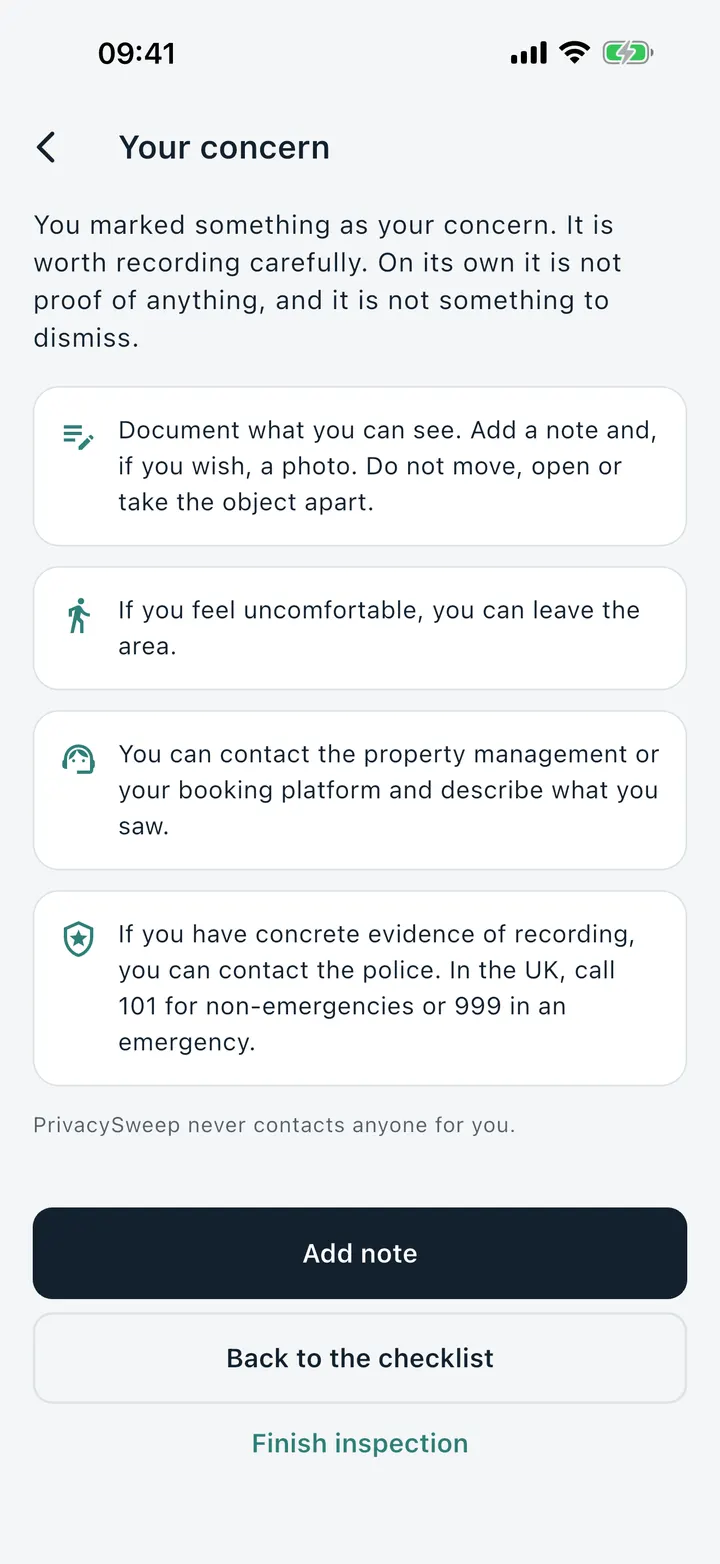
From there you can add a note describing your concern, go Back to the checklist, or Finish inspection. PrivacySweep never contacts anyone for you.
Review and finish
Tap Review and finish at the bottom of the checklist. The review shows:
- Physical checks: how many you recorded, skipped and did not check.
- Electronic checks: each look as completed, unavailable, interrupted or not run.
- Observations: counts per look. Tap one to open the full list.
- Your concerns, your notes and your photos.
Tap Finish inspection, or Back to the checklist to carry on. The finished summary reads Inspection finished with the line: "Your inspection record is complete. PrivacySweep cannot reliably detect offline audio recorders or arbitrary RF transmitters and does not certify a room safe."
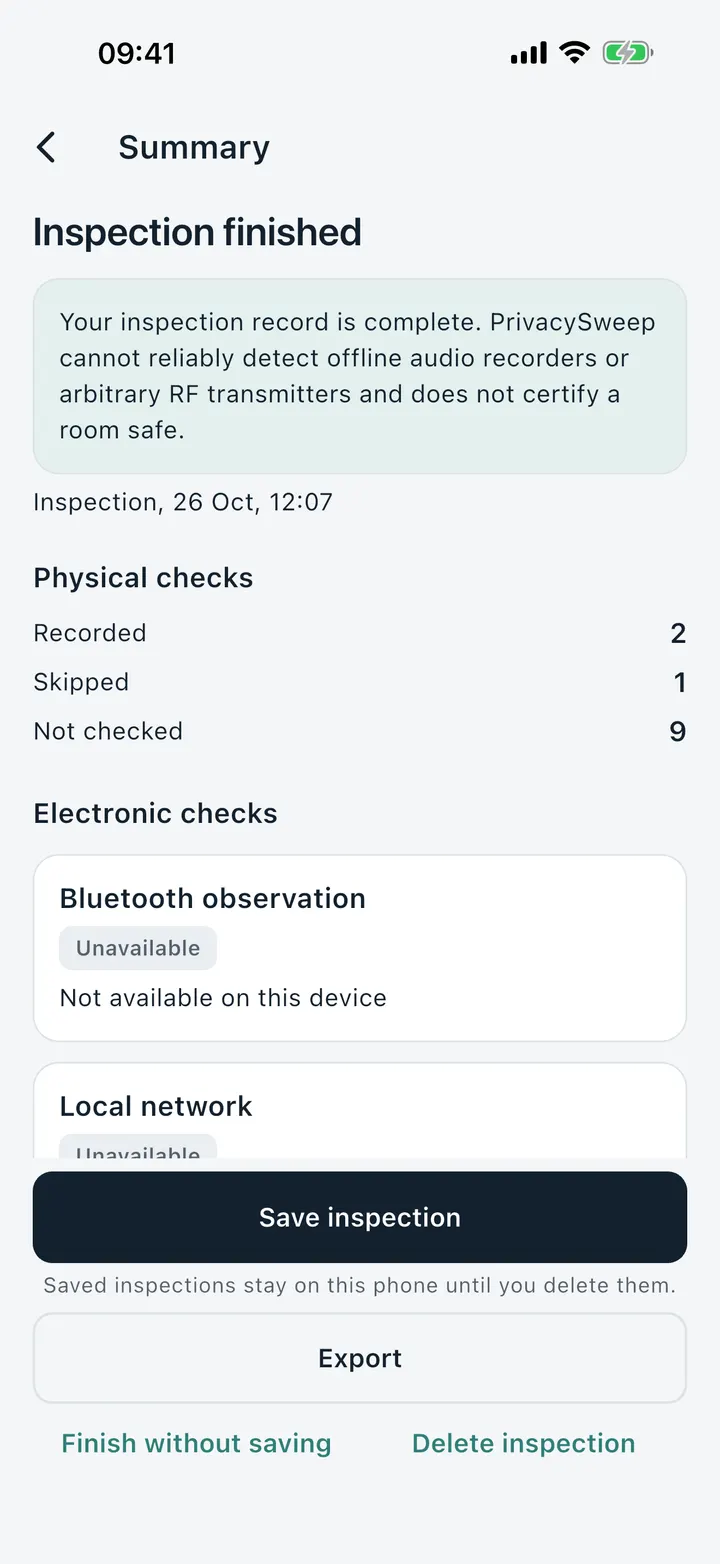
Then choose what to do with it:
- Save inspection keeps it on your phone until you delete it.
- Finish without saving keeps it for 24 hours from when you started, then deletes it automatically.
- Export shares a text copy. See below.
- Delete inspection removes it now.
Exporting a record
- On a summary, tap Export.
- The Export preview shows exactly the text that will leave the app.
- Decide whether to switch on Include device names and identifiers. It is off by default, because names and identifiers can reveal personal information about other people.
- Decide whether to switch on Include photos. It is off by default. Location and camera details are removed from exported photos.
- Tap Share and pick where it goes: email, Messages, Files, notes or any app on your phone.
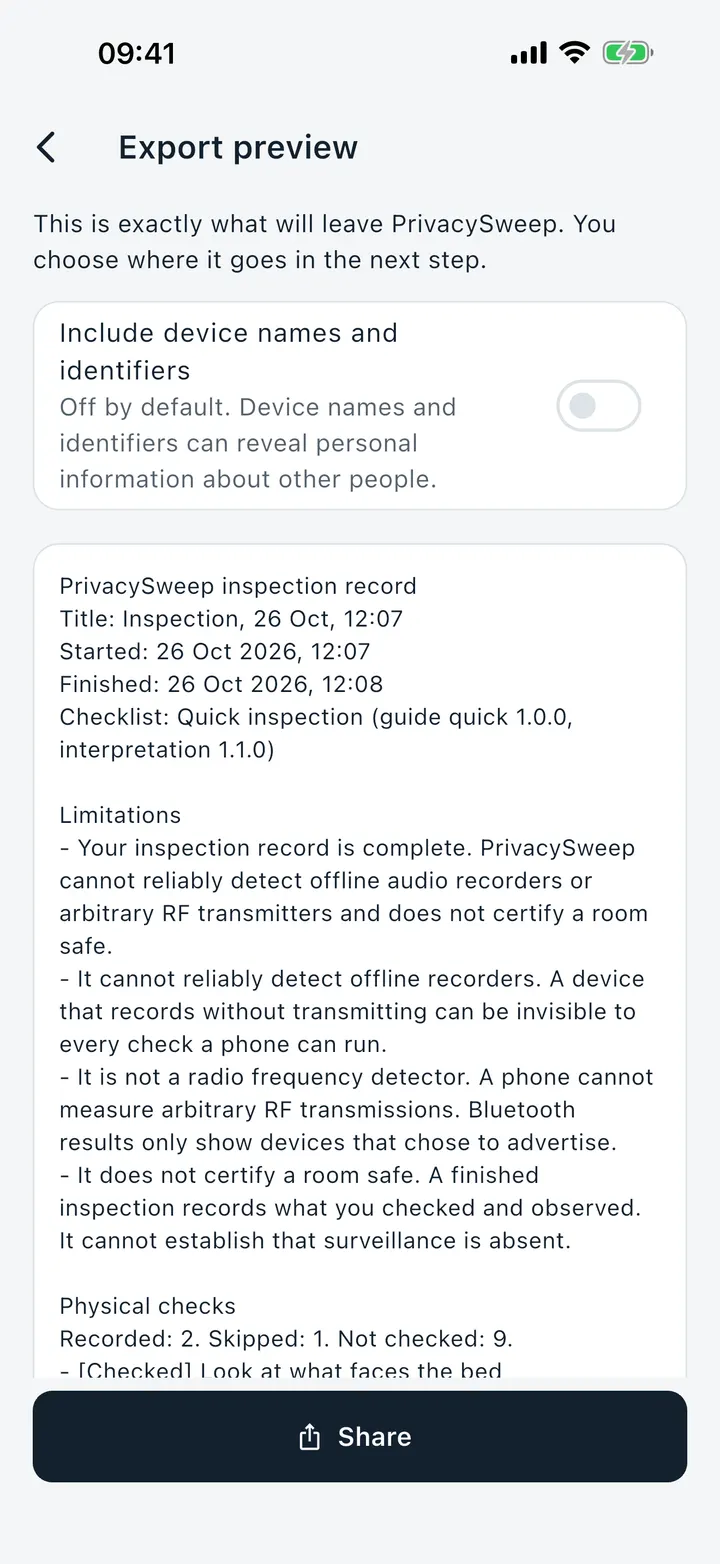
Every export includes the limitations. Copies you share are outside PrivacySweep. Deleting the inspection does not delete them.
Saved inspections and deleting
- Open a saved inspection from the home screen to see its summary again.
- To delete one, open it and tap Delete inspection, then confirm. Its notes and photos go with it.
- To delete everything, use Delete all inspections in Settings.
Deleting removes the records PrivacySweep can reach. Phone storage cannot guarantee secure erasure. Deleting the app also removes everything it stored.
Settings
- Delete saved inspections after 30 days: when on, saved inspections older than 30 days are removed the next time you open the app.
- Delete all inspections: removes every inspection, note and photo PrivacySweep stored on this phone. Exported copies are not affected. This cannot be undone.
- Read the limits again: shows the first-launch limits screen.
- About PrivacySweep: the version number and the publisher.
Permissions explained
| Permission | Asked for when | Used for |
|---|---|---|
| Bluetooth | You tap Start 30-second check | Reading Bluetooth advertisements for up to 30 seconds. Never pairing or connecting. |
| Local network | You start a network look | Listening for devices that announce themselves on the network you are joined to. |
| Camera | You tap Add photo or start the infrared look | Taking a photo for a note, or showing a live preview. The preview is never stored. |
| Location (Android) | You start the Wi-Fi look, or a Bluetooth look on Android 11 and earlier | Android requires it to list Wi-Fi networks, and on older versions for Bluetooth scans. PrivacySweep never uses it to find where you are. |
| Microphone | Never | Not used. |
If you decline a permission, that look is recorded as not run and the checklist carries on. You can change your mind in your phone's Settings app under PrivacySweep.
Troubleshooting and questions
The Bluetooth look says "Not run: permission not granted"
You declined the Bluetooth prompt. On iPhone, open Settings, then PrivacySweep, and switch Bluetooth on. On Android, open Settings, Apps, PrivacySweep, Permissions, and allow Nearby devices.
The Bluetooth look found nothing
Check Bluetooth is switched on. Then remember that many devices never advertise, and some only advertise now and then. An empty result is a record of what your phone heard, not an all-clear.
The network look shows nothing on hotel Wi-Fi
Most hotel networks keep each guest's devices apart, so your phone cannot see other devices on them. That is common and is not a fault in the app.
The infrared preview is black or says the camera could not start
Close any other app using the camera and try again. If you declined camera access, allow it in your phone's Settings. Some phones filter infrared from the front camera entirely.
The look stopped when I switched apps
That is deliberate. Looks run only while PrivacySweep is on screen, and stop when you leave. Anything seen so far is kept.
My unsaved inspection disappeared
Unsaved inspections are deleted 24 hours after they start. Tap Save inspection on the summary to keep one.
Will my inspections move to a new phone?
No. They are kept out of device cloud backups on purpose. Export any record you want to keep before you change phones.
The app shows a device name that worries me
Names are typed by whoever set the device up and can say anything. Read the Why this is not proof part of the observation, label anything that is yours, and if you are still uneasy, follow the steps in If something concerns you.
What the app does not do
- It does not detect hidden cameras, microphones or recording devices.
- It cannot reliably detect offline audio recorders or arbitrary radio transmitters. A phone is not a radio frequency detector.
- It cannot tell you that a device is recording, where a device is, or who owns it.
- It does not certify a room safe and never shows an all-clear, a threat score or a danger meter.
- It does not pair with or connect to Bluetooth devices.
- It does not try passwords, sign in to devices, open video streams or sweep a network for open ports.
- It does not analyse camera pictures.
- It does not contact the property, a booking platform or the police for you.
- It does not use the microphone, and it does not use your location to find where you are.
- It does not send anything to Overpass. There is no account, no analytics and no server.
Getting help
Email support@overpass.co.uk. Tell me your phone model, the app version from Settings, and what you expected to happen. Please do not send device names or identifiers from your inspections unless you need to.
PrivacySweep is published by Overpass Limited.